EQUITEES GUIDE · COMPANY RESEARCH
How to research an Indian company using Equitees
Six things to try in an Asian Paints workspace: plot the financials, check cash and borrowings, investigate a flag, compare the industry, and read the source.
Open Asian Paints in Equitees. Instead of stopping at the latest number, we’ll select the rows we want to investigate and plot their history. Then we’ll use the other widgets to put those trends in context.
The annual comparisons below use the app’s consolidated figures for March 2025 and March 2026. Amounts are in ₹ crore, except percentages. These are dated examples from the app; the workspace may contain newer information when you open it.
The financial-statement screenshots show a signed-in workspace with paid access. The latest five financial years are available free; older history requires a paid plan. Annual-data forensic checks require a free account.
Before you start: check the company and the basis
Start in Overview. Confirm the name Asian Paints Ltd and the NSE symbol ASIANPAINT. The app places it in the paints industry.
For this example, we’re using consolidated accounts. Keep the same reporting basis and period when you compare figures; a group’s consolidated total and its standalone accounts can describe different scopes of business.
1. Plot sales and profit over time
Open Financial Statements → Income Statement. In the Add column, tick Sales and Operating Profit. The chart above the table plots the selected rows across the available years.
Use Period → Annual for this comparison and adjust the date slider. You can switch each series between a line and a bar. Panel → By metric gives each metric a separate chart when you want to read its shape more clearly.
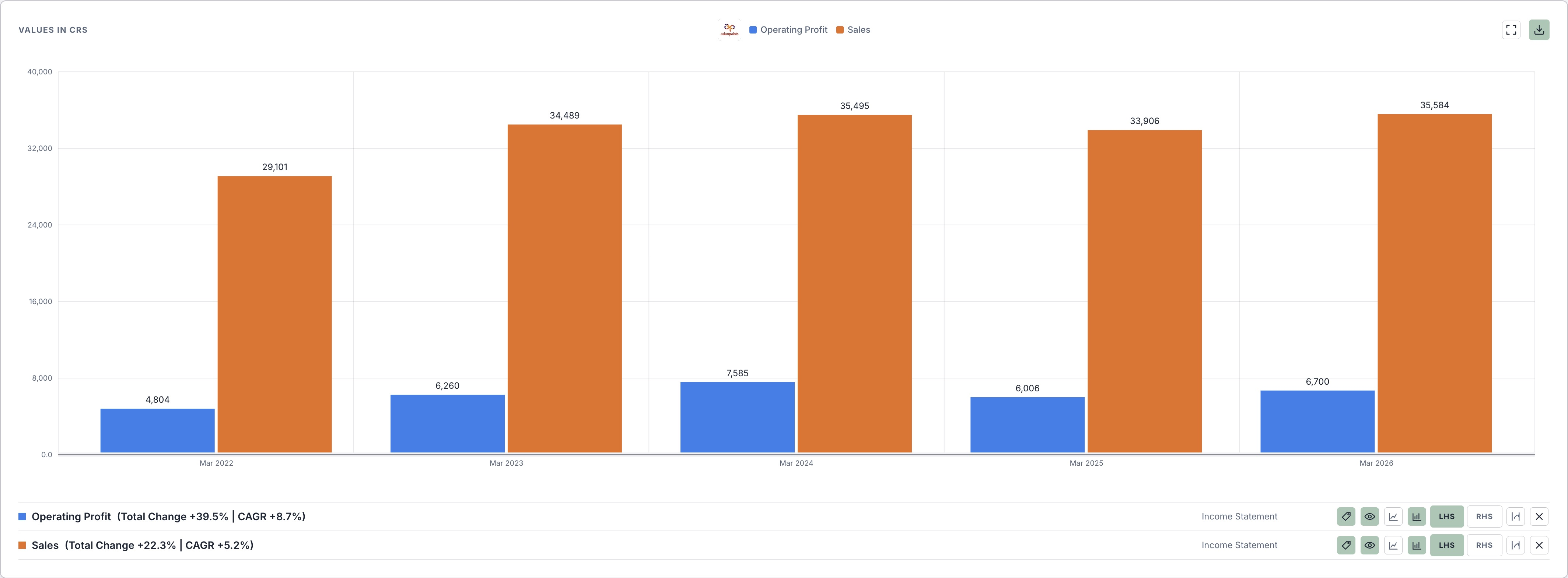

Now compare the annual columns for Mar 2025 and Mar 2026:
| Metric | Mar 2025 | Mar 2026 |
|---|---|---|
| Sales | 33,906 | 35,584 |
| Operating profit | 6,006 | 6,700 |
| Operating margin | 18% | 19% |
| Net profit | 3,710 | 4,395 |
Sales increased by about 5%, while operating profit increased by about 12%. Those percentages are calculated from the two annual amounts above. The app’s rounded operating margin moved from 18% to 19%.
Does that improvement follow a steady trend, or does it reverse a weaker year? The chart helps you choose the years to examine. Then ask which expenses changed as a share of sales and read management’s explanation in the results documents.
Keep ₹ crore amounts together when using a shared axis. If you add a percentage such as operating margin, use a separate axis or By metric so the different units remain clear.
Then switch to Quarterly P&L to see whether the recent quarters tell a similar story. Compare the same quarter across years, and keep quarterly figures separate from full-year totals.
2. Compare profit with operating cash
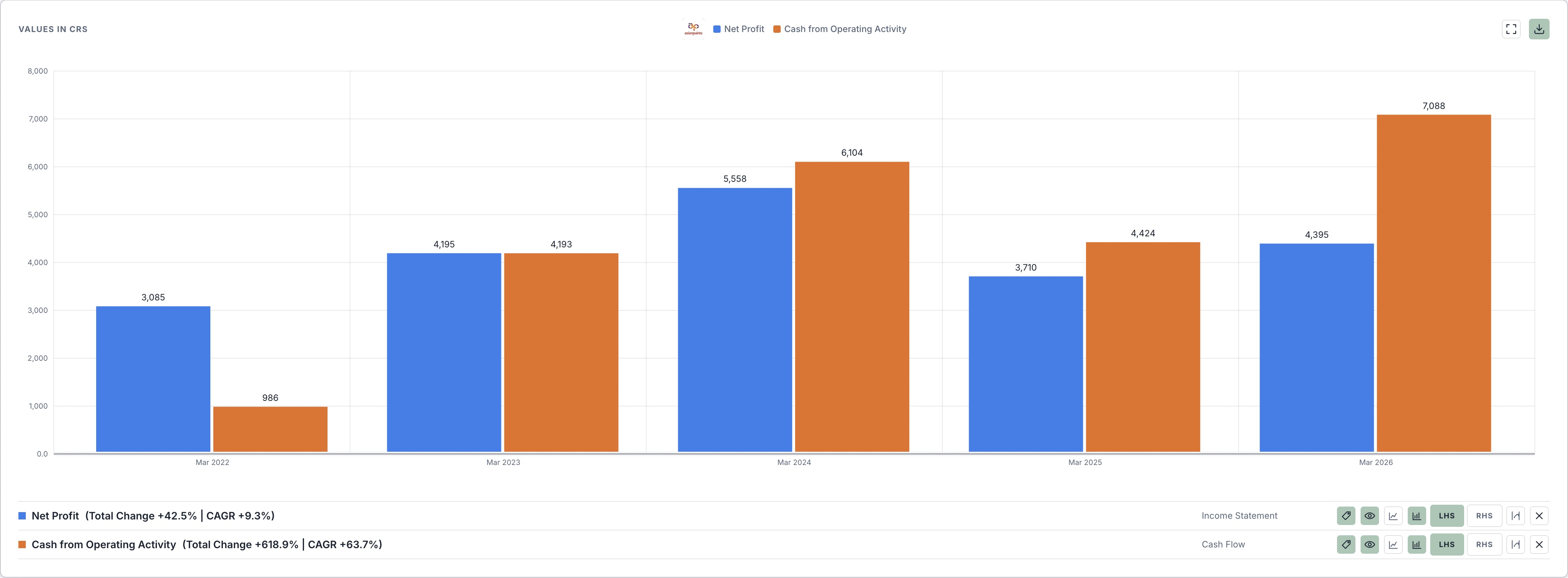
Untick the previous selections and select Net Profit in Income Statement. Switch to Cash Flow and select Cash from Operating Activity. The Net Profit selection stays in the chart: you can plot line items from different statements together.
Keep the chart on Annual and use the same range for both series. Does operating cash generally keep up with reported profit? Look for gaps across several years, then return to the table to investigate them.
| Metric | Mar 2025 | Mar 2026 |
|---|---|---|
| Net profit | 3,710 | 4,395 |
| Cash from operating activity | 4,424 | 7,088 |
| Working capital changes | −570 | 1,476 |
Operating cash flow was above net profit in both years. It also rose much more sharply in the second year. Expand Cash from Operating Activity to read the adjustments beneath it: working capital changes moved from a cash outflow of ₹570 crore to an inflow of ₹1,476 crore.
How much of the extra cash came from working capital? Compare the inventory, receivables and payables adjustments, and read the notes that explain them. A positive inventory adjustment in a cash-flow statement represents a contribution to cash; it should not be read as an increase in the inventory balance.
3. Plot borrowings and read the breakdown
Clear the previous chart selections and open Balance Sheet. Select Borrowings, expand that row, and select Lease Liabilities. Plotting both helps you see how much of the borrowing balance is accounted for by leases.
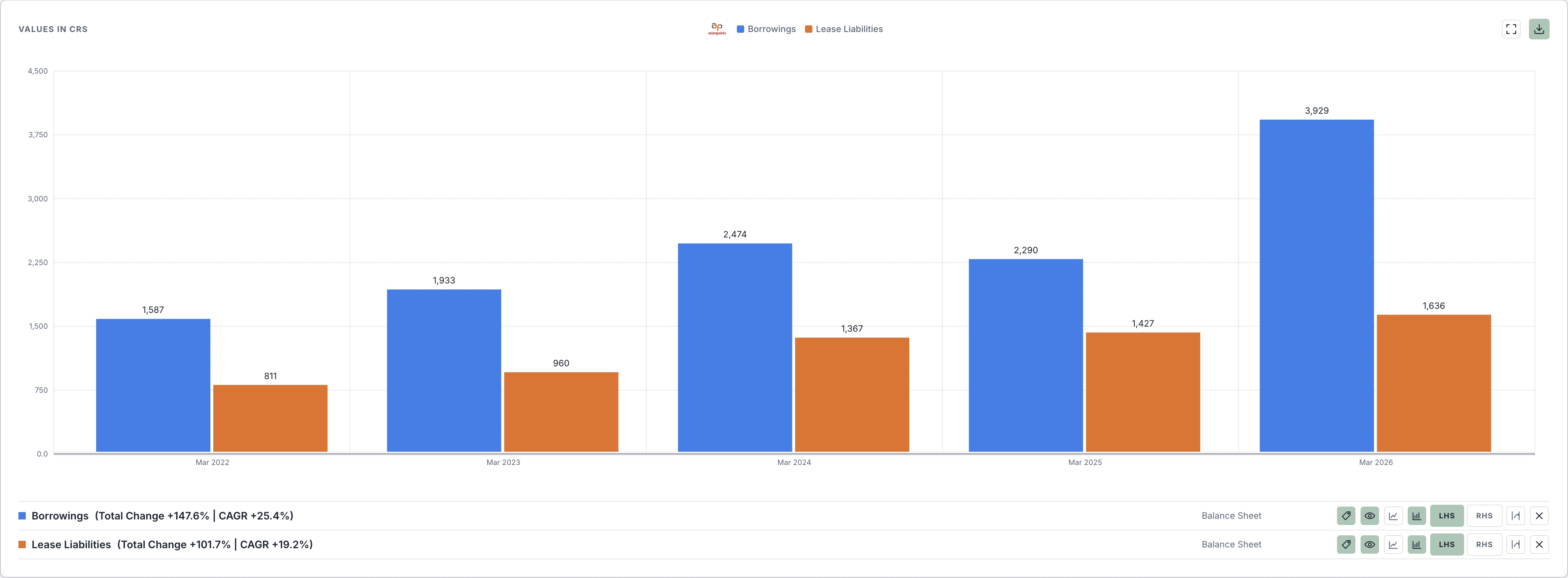
The app’s total borrowings rose from ₹2,290 crore in March 2025 to ₹3,929 crore in March 2026. Those totals include lease liabilities of ₹1,427 crore and ₹1,636 crore, respectively. Calling the whole number bank debt would hide that distinction.
Expand Other Assets to find cash equivalents, which increased from ₹782 crore to ₹1,074 crore. The separate investments balance also increased. Before using investments to calculate a net-debt figure, check what those investments contain and how readily they can be turned into cash.
Useful questions to carry forward: what changed in long-term and short-term borrowing, when is it repayable, and what was the funding used for? Look for the borrowing and lease notes in the annual report.
4. Turn a forensic flag into a question
Open Forensic Accounting. In Annual Data → Red Flags, read the explanation and reporting period for each finding. For this snapshot, Asian Paints has one mild flag: other asset items increased relative to revenue.
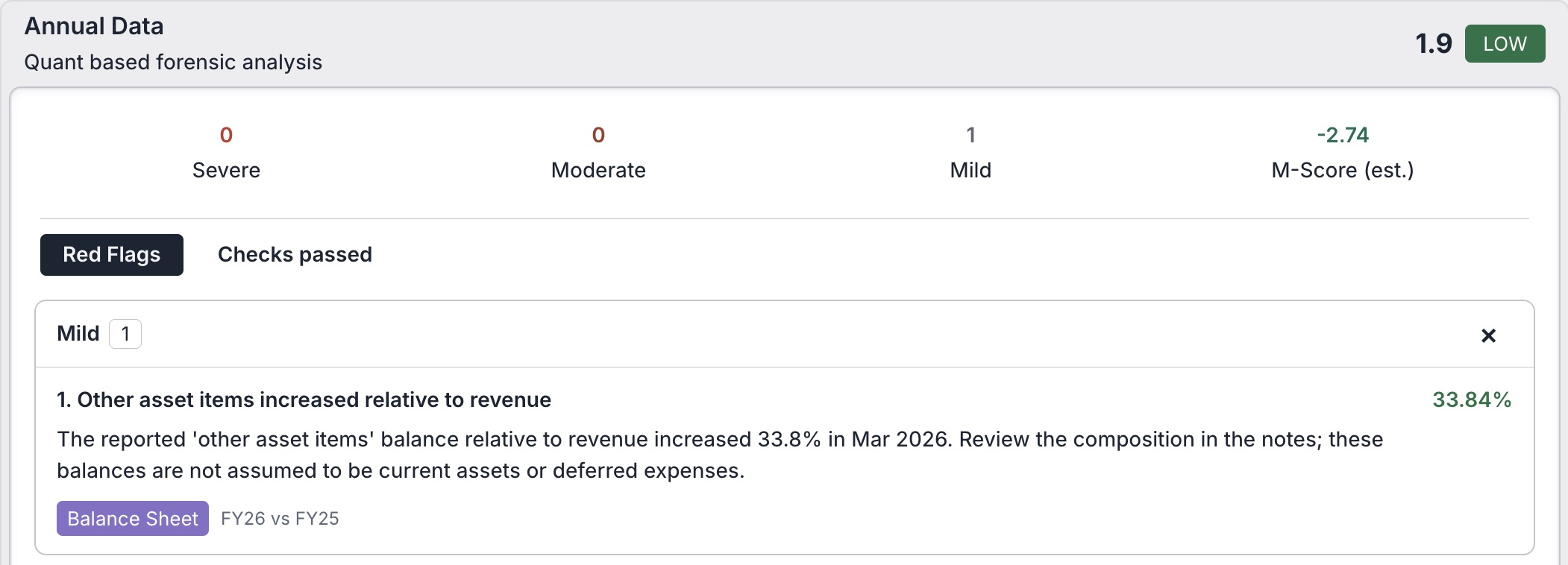
The check uses March 2026. The underlying other asset items balance increased from ₹3,319 crore to ₹4,662 crore. The balance relative to revenue increased by about 33.8%; that is the relationship being flagged.
Go back to Balance Sheet and find that row. Then look for the note explaining what the balance contains. Are the items operating assets, advances, deposits, or something else? Let the note answer the question rather than assuming the label tells the whole story.
A screening flag is a reason to investigate, not a finding of wrongdoing. The separate AI Forensic panel requires paid access. Check its coverage independently: the stored report-based analysis for this example covers 2023–2025, while this Annual Data check uses March 2026.
5. Compare the company with its industry
Open Sector Analysis and choose a metric. Start with P/E (TTM) to compare the company’s valuation multiple with the available peer, sector and industry baskets.
If the widget is not already open, choose Add widget → Sector Analysis → ADD TO WORKSPACE.
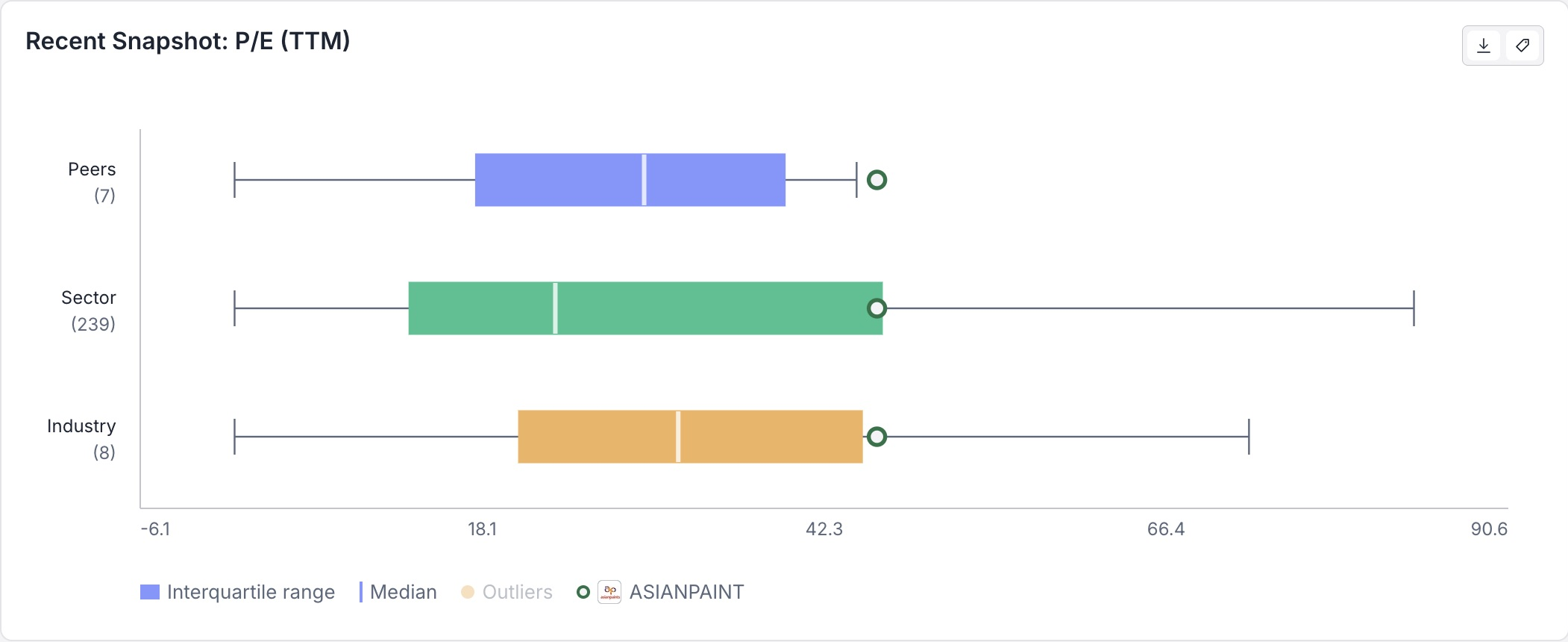
The app classifies Asian Paints in the Paints industry and the broader Consumer Durables sector. Those groups answer different questions. Compare the latest view first, then use the historical comparison to see whether the company’s position within the basket has changed.
You can change the historical comparison between Peers, Sector and Industry, and adjust the available range. Missing history stays missing; selecting a longer range cannot create earlier observations.
A premium to other companies is a starting point for questions about growth, profitability and risk. It does not establish that the stock is expensive or cheap. Check the ratio’s earnings basis and dates, then use another metric to see whether the same comparison still holds.
6. Take the questions back to the filings
If you do not see Documents, choose Add widget → Documents → ADD TO WORKSPACE.
Return to Documents and choose the document that can answer the question. Under Annual reports, open FY 2025–2026. The app’s catalogue also includes a Q2 FY27 presentation dated 29 October 2026 and a Q1 FY27 transcript dated 3 August 2026.
For Q2 FY27, select Presentation. In this snapshot, that entry has no transcript. To read the available Q1 transcript, choose Q1 FY27 → Transcript. Keep the document type and date in view as you move between them.
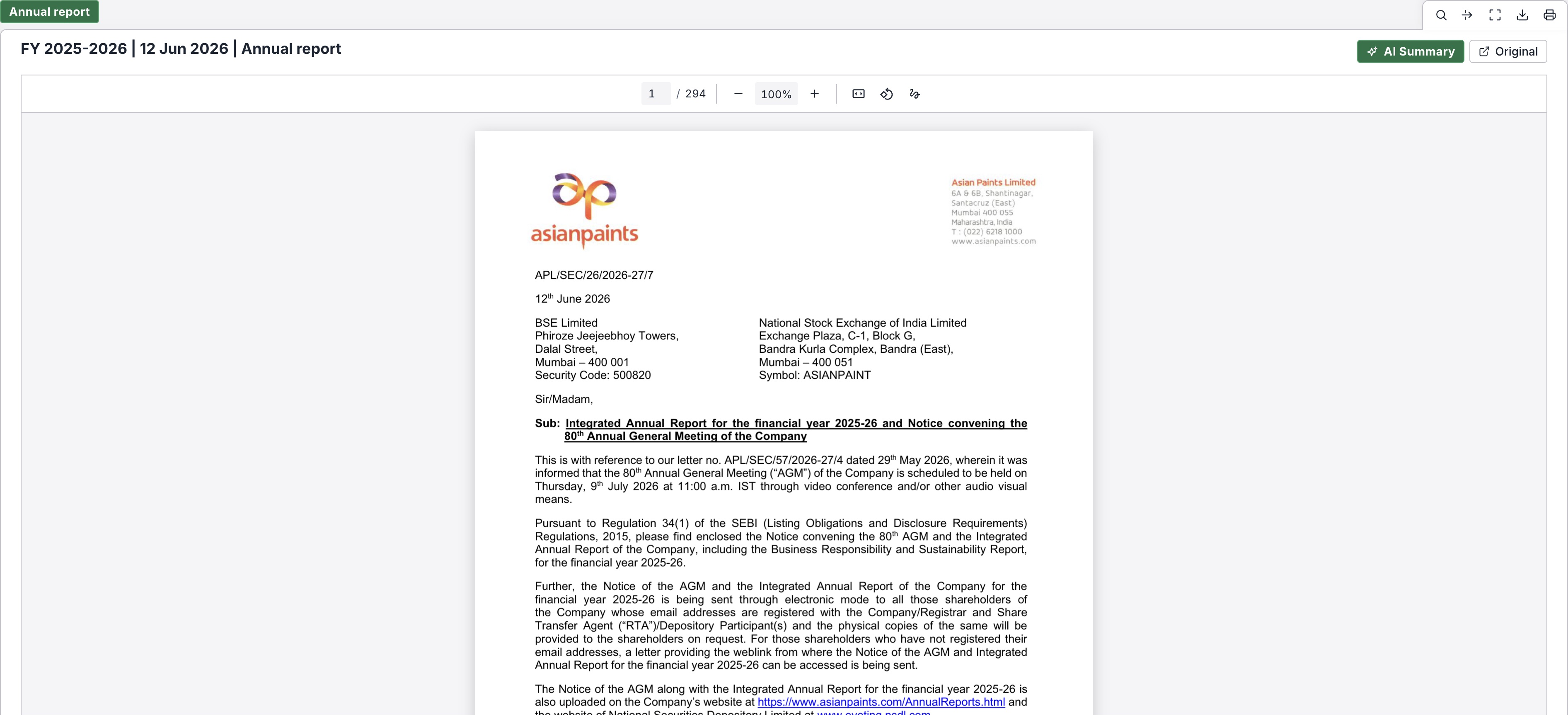
Use these documents to follow up on the questions collected so far: the margin change, the working-capital contribution to cash flow, the borrowing terms and the increase in other asset items. Keep each explanation with the figure and period it refers to.
Do more with the workspace
Choose Add widget to see the other tools available for this company. Build a DCF from your own assumptions, use Reverse DCF to explore the growth or margin implied by a price, choose a peer group in Peer Comparables, or compare price and business metrics in Charting.
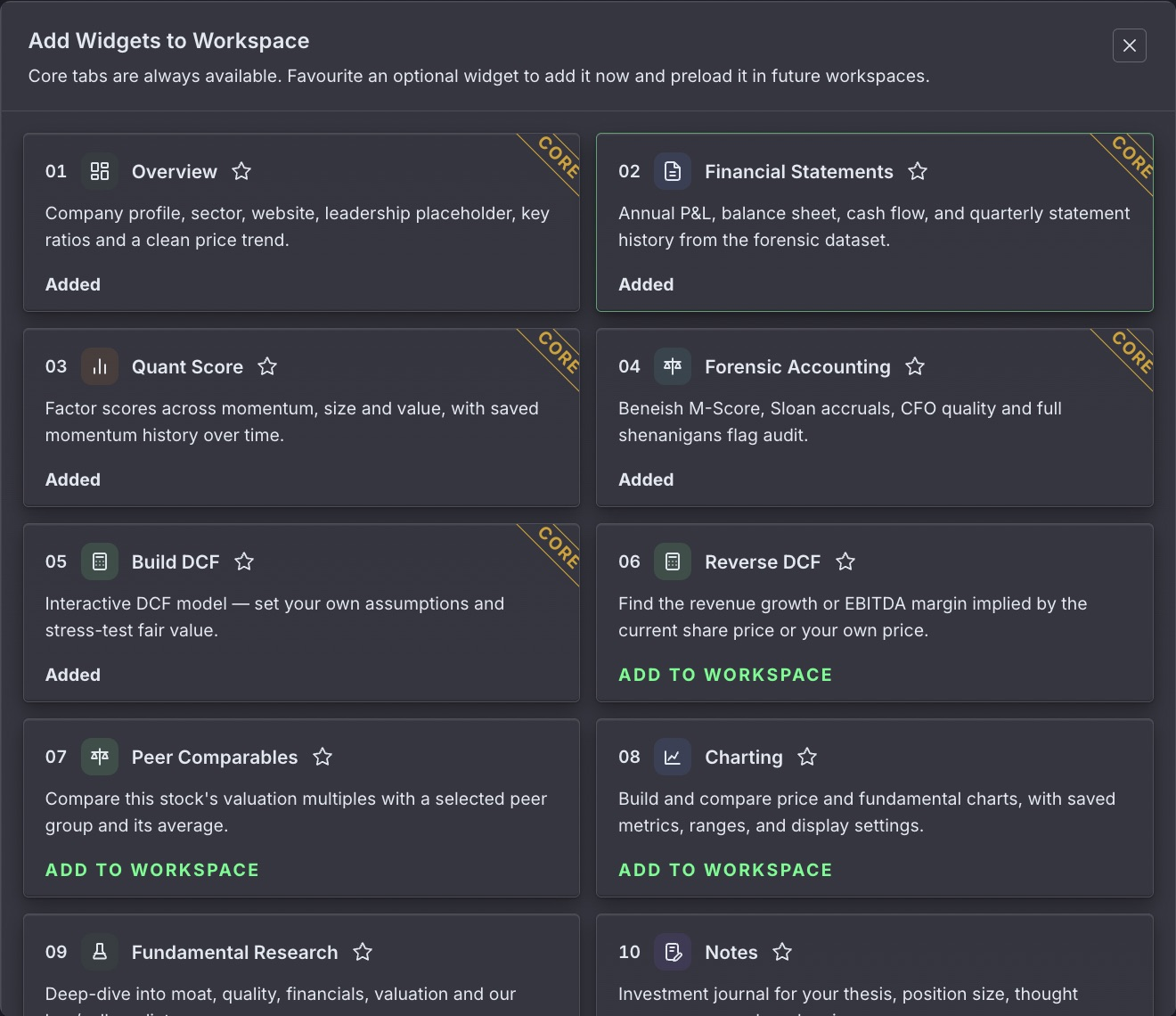
There are twelve widget choices in this snapshot, including Fundamental Research, Notes, Sector Analysis and Documents. Add the views that help answer your next question; the six modules above are one route through the workspace.
Keep your research in Notes
Choose Add widget → Notes → ADD TO WORKSPACE, then New entry in the journal. Give the entry a title and record the period you checked. Keep what the figures show separate from the questions you still need to answer.
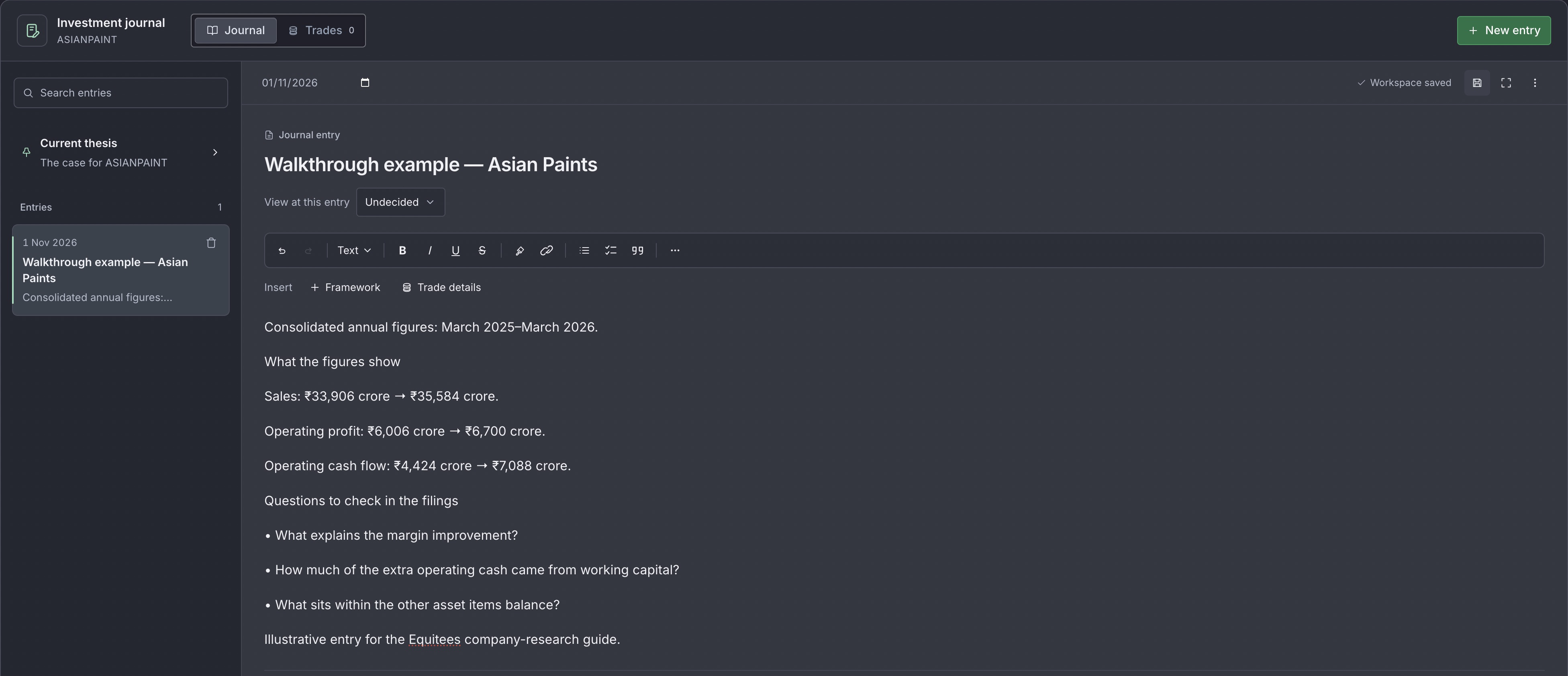
For this example, the research note brings together:
- Operations: annual sales and operating profit increased; read the results commentary to understand the margin change.
- Cash: operating cash flow rose, with a sizeable working-capital contribution; check the adjustments and their history.
- Funding: borrowings increased and include leases; read the breakdown, repayment terms and use of funds.
- Follow-up: understand the increase in other asset items from the annual-report notes.
Use View at this entry to record your view at the time, and Save workspace to save the entry with the workspace. The dated journal gives you somewhere to return when new results arrive and your reasoning changes.
You can then use Ratios to compare the business with its own history, or Peer Comparables to work with a peer group you select. Check each ratio’s date and whether it uses a full financial year or trailing twelve months. Keep your assumptions alongside the numbers.
Try the same sequence with another company. Save the questions that remain open, and revisit them when the next set of results or filings arrives.
Open Asian Paints in Equitees